

Binance MCP Server
Connect your AI agent to Binance with a single URL. Your agent can read market data, check balances, trade Spot / Margin / Convert / USDⓈ-M / COIN-M Futures, and move funds between wallets inside a dedicated Agentic sub-account — no local install, no API keys on your device.
Withdrawal scope
Never available
Every trade / transfer
Confirmed by you first
Risks
You are responsible for the trades your AI agent places. AI can make mistakes, act on outdated or hallucinated information, or send incorrect parameters — always verify before execution. Trading derivatives and margin carries substantial risk. See Disclosures below.
What's an MCP?
Model Context Protocol (MCP) is an open standard that lets AI agents connect to external apps and services. Instead of just answering questions, an AI with MCP access can take actions on your behalf.
What your agent can do
Check the market
"What’s the current BTCUSDT price and 24h change?" — tickers, order books, candlesticks, funding rates.
Check your balance
"Show my Agentic account balance across all wallets." — plus a read-only view of your main account.
Trade
"Buy $100 of BNB at market on spot." — Spot, Margin, Convert, USDⓈ-M Futures, and COIN-M Futures.
Move funds between wallets
"Move 2,000 USDT from my Spot wallet to my USDⓈ-M wallet." — inside your Agentic sub-account only.
What your agent can access
When you connect, you choose which scopes to grant. Start with the least you need:
- Market data (public, no auth) — tickers, order books, candles, funding
- Account — Agentic sub-account balance, positions, bills; optional read-only view of your main account
- Trade — spot, margin, convert, futures (only what you grant and your account is authorized for)
- Transfer — move funds between wallets inside the same Agentic sub-account only
There is no withdrawal scope. Your agent can never move funds out of the sub-account to an external address.
Before you start
- Log in to Binance.com in your desktop browser — this feature is built for desktop, not mobile.
- Make sure the AI client you plan to use is installed and open: Claude Code, Claude Desktop, Codex CLI, ChatGPT on the web, ChatGPT/Codex Desktop, VS Code, or Grok Bot.
Don't paste the endpoint into a chat
Never paste the MCP endpoint into an AI chat and ask it to install the server, and never open the endpoint directly in your browser. Follow the setup steps for your client in the tabs below instead.
Connect your AI agent
Step 1: Open Terminal on macOS/Linux or PowerShell on Windows.
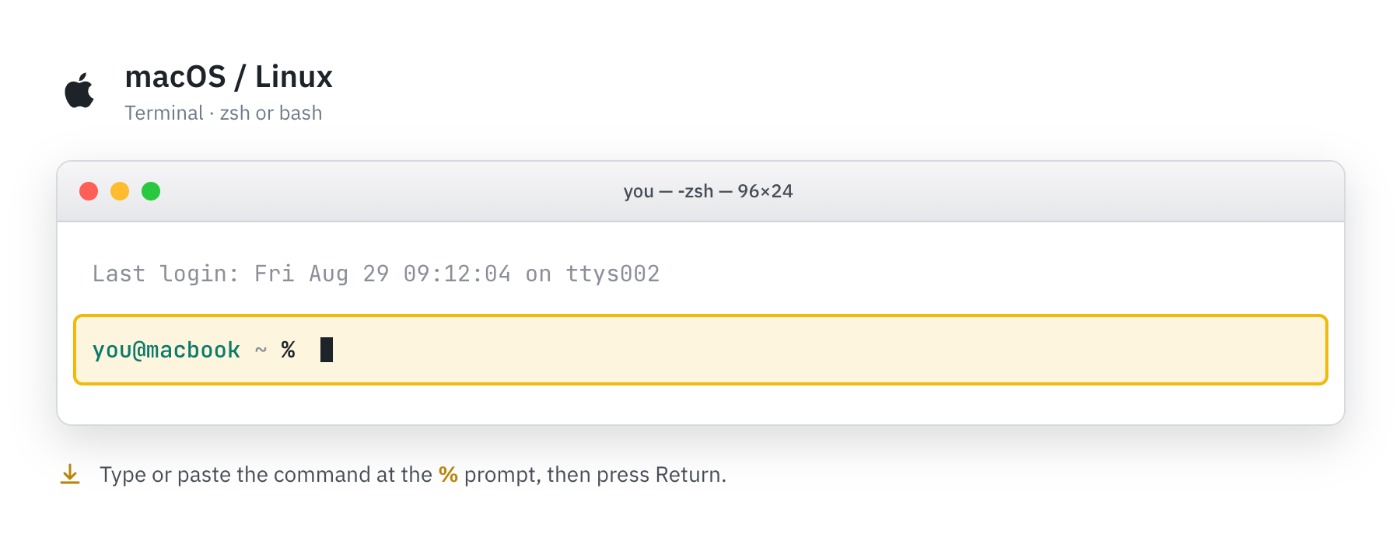
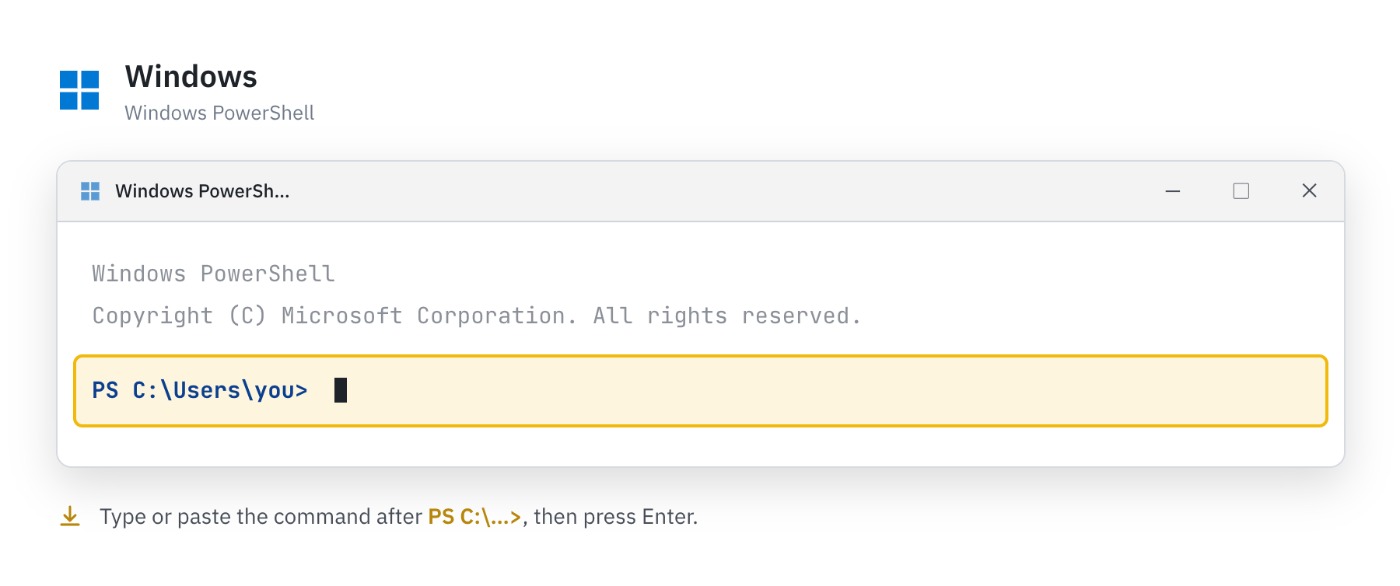
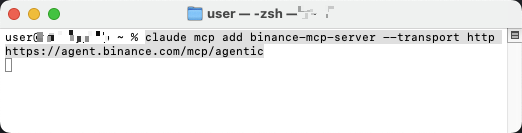
Step 2: Run the following command to add the Binance MCP server:
Code
Step 3: Open the /mcp menu and select binance-mcp-server.
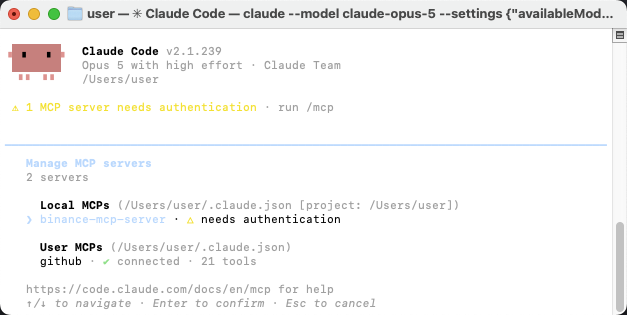
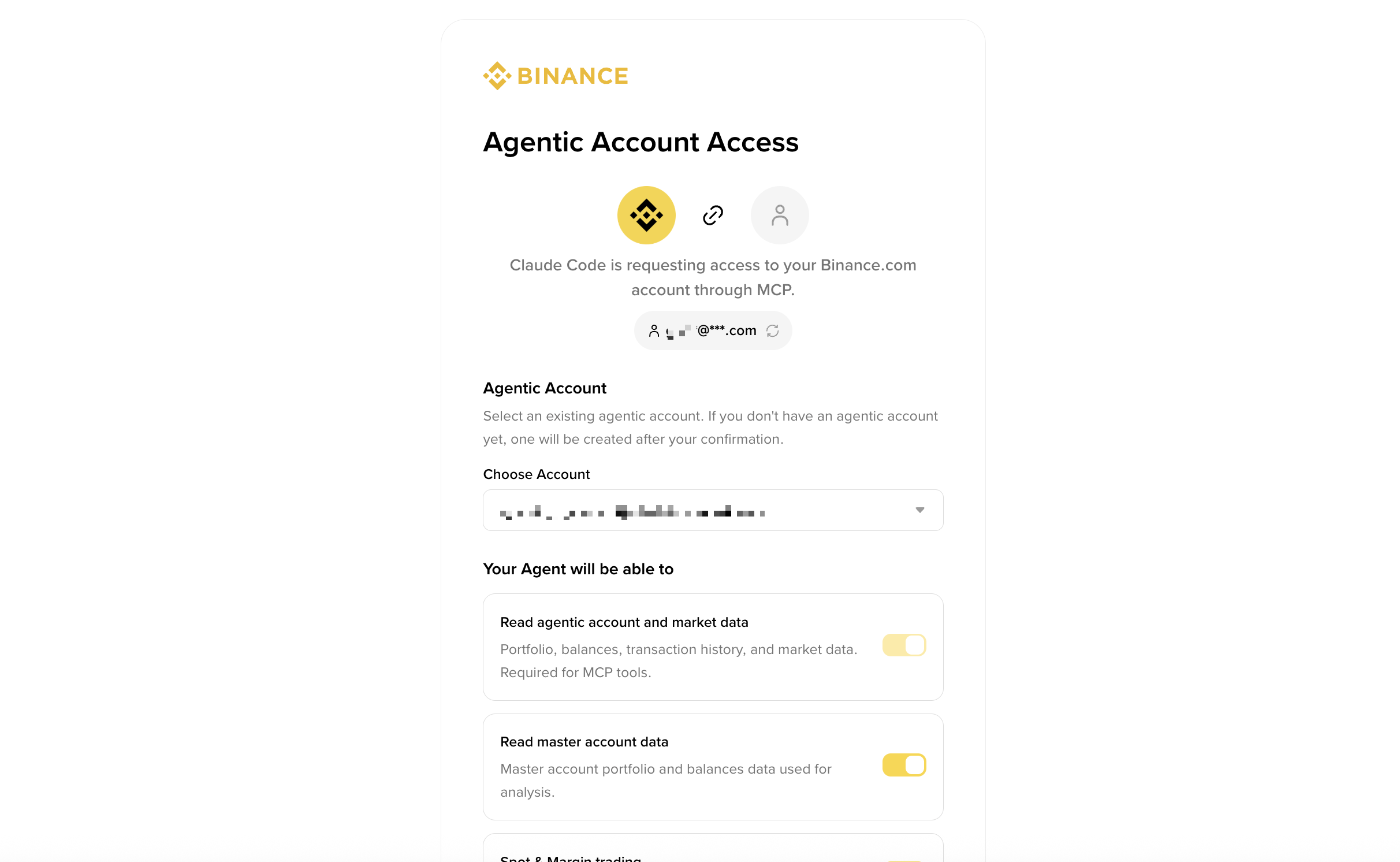
Step 4: Authenticate to authorize the connection.
Check that the connection works
- In your AI client's chat, enter: "Use the Binance MCP Server to show the current BTCUSDT price and 24-hour change."
- Confirm the response shows the Binance MCP tool being used and returns live BTCUSDT market data.
Open and fund an Agentic sub-account
Your agent trades inside a dedicated sub-account, isolated from your main account. If you don't have one, the onboarding flow prompts you to create one when you first authorize.
The sub-account starts empty. Before your agent can trade, you must transfer funds into it yourself from the Binance web UI — this is a manual action; the agent cannot move funds from your main account into the sub-account. Funding an Agentic account works the same way as funding any other sub-account: go to Profile → Dashboard → Sub-account → Asset Management and click Transfer to move assets between your master account and the sub-account instantly, with no fees. Fund it via:
https://www.binance.com/en/my/sub-account/asset-management/transfer?asset=BTC
We recommend funding it with only what you're willing to let the agent trade.
Note: the Transfer scope only lets the agent move funds between wallets inside the sub-account (e.g. Spot → USDⓈ-M). It cannot pull funds from your main account — that first deposit is always the manual step above.
Example: your first session
Once connected and funded, you interact in plain language. The agent reads live data and asks you to confirm before anything that moves funds or places an order.
Check the market (read-only — runs immediately)
"What's BTCUSDT trading at, and how's it moved over 24h?"
The agent pulls the live ticker and summarizes price and 24h change. No confirmation needed — reads never touch your balance.
Check your balance
"What do I have in my Agentic account?"
The agent reads your sub-account balances across Spot, Margin, and Futures wallets. If it's empty, fund it first (see above).
Place a trade (write — the agent confirms first)
"Buy $100 of BNB at market on spot."
The agent restates the order — symbol, side, type, amount — and waits for your yes before sending it. Always verify the details here; this is the step that spends real funds.
Verify the result
"Did that fill? What's my BNB balance now?"
The agent checks the order status and your updated balance.
This confirm-before-execute pattern applies to every non-read action — orders, cancels, and transfers between your sub-account wallets.
Manage your Agentic account
You can manage your Agentic account directly from Binance.com, without your agent.
Go to Profile → Dashboard → Sub-account → Account Management. Here you'll see all your sub-accounts, including your Agentic accounts. Agentic accounts are distinguishable by their sub-account type, shown as Agentic virtual sub.
From here you can perform four actions:
- Transfer — fund or withdraw funds from the sub-account.
- View permissions — verify your Agentic account permissions. Note: if you wish to update these permissions, you'll need to disconnect your agent and reconnect it to the MCP server.
- Disconnect agents — select one or more agents to disconnect. You can re-connect your agents to this account later if you wish. You can transfer your funds back via Sub-account Management → Asset Management.
- Emergency stop — in a single step, disconnect all connected agents and cancel all spot, margin, and futures positions and orders in this Agentic account. You can re-connect your agents to this account again later if you wish. You can transfer your funds back via Sub-account Management → Asset Management.
Troubleshooting
- I opened the endpoint in my browser — close the page and follow the connection steps for your AI client above instead.
- I pasted the endpoint into the AI chat — remove the connection the AI created, then repeat the exact setup steps in this guide.
- The command isn't recognized — confirm the required AI client or CLI is installed, reopen Terminal or PowerShell, and try again.
- The server was added but can't be used — reconnect it, authenticate, and repeat the connection check above.
- Make sure the endpoint is exactly
https://agent.binance.com/mcp/agentic. - Market data works but account or trading actions don't — reconnect and grant the Account or Trade scope you need.
- If a trade fails with an insufficient-balance error, the sub-account has no funds — transfer funds into it first (see "Open and fund an Agentic sub-account").
- If the authorization expired, disconnect and reconnect the Binance MCP Server.
- To revoke access: Profile → Dashboard → Sub-account → Account Management → Disconnect agents.
Getting help
If you need help while integrating:
- Review the relevant documentation first
- Check available tools, examples, and sample applications
- Contact Binance Customer Support via Live Chat if you need further assistance
Disclosures
Disclaimer: The Binance MCP Server is a Binance AI Tool that facilitates AI-assisted trading and does not constitute any advice. Binance is not responsible for losses resulting from agent-generated decisions. You are solely responsible for supervising your agent's activity, configuring scopes, and verifying actions. Use of AI Tools may be subject to additional Binance Product Terms, where applicable. For more information, see our Terms of Use, and Risk Warning and AI Policy and Terms.